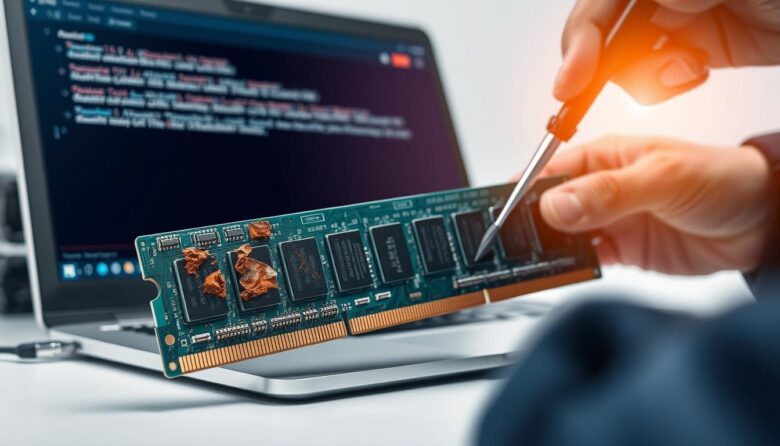
I write from hands-on experience. I have seen many machines stop before the operating system loads because memory modules fail during startup. When that happens, the BIOS can refuse to boot if it hits faulty sectors.
I always check BIOS settings first to confirm the board sees each stick. If the board misreads a module, the computer can show repeated crashes or refuse to reach the desktop.
Early detection prevents data loss and long repair sessions. I spend time testing sticks with tools and swapping modules so I can isolate a single bad component that threatens system stability.
Act fast when you suspect trouble. A focused check saves files and keeps a high-performance build running smoothly.
Key Takeaways
- Check BIOS first when the computer won’t boot.
- Swap and test memory modules to pinpoint the problem.
- Identify ram failure early to avoid data corruption.
- A single faulty stick can destabilize the whole system.
- Use diagnostics tools and keep backups before repairs.
Understanding the Role of Memory in Your System
Memory sits at the core of how your computer juggles tasks and stays responsive. I have spent over 30 years repairing machines, and I can tell you that modules shape real-world speed more than many expect.
Your computer relies on ram as short-term memory to handle multitasking. That explains why 16GB is the most common setup, used by 47.23% of users in the June 2024 Steam survey.
Power users and creators often choose 32GB. The survey shows 32GB at 29.38%, and it helps with heavy editing and large workloads.
When system memory is too low, apps stall and file opens slow down. Understanding how modules function helps you pick the right configuration for steady performance.
| Configuration | Usage Share | Best For |
|---|---|---|
| 8GB | 12.5% | Basic browsing, light office work |
| 16GB | 47.23% | Everyday multitasking, gaming |
| 32GB | 29.38% | Content creation, streaming, heavy multitask |
Common Symptoms of Bad RAM
I watch for a short list of clear signs when I troubleshoot a PC. These clues help me decide whether to run memory tests or swap modules right away.
Performance Instability
Programs stutter, video lags, and simple tasks take longer than they should. I notice this first during heavy workloads or game sessions.
Slowdowns that come and go usually point to a memory problem rather than storage or CPU load.
File Corruption
The hard drive stores files, but faulty memory can corrupt data while it writes. I once recovered a project that kept failing to open until I swapped the sticks.
If installations or saves fail repeatedly, check memory before blaming the drive.
Unexpected Restarts
The Blue Screen of Death and random crashes are reliable warnings. I use Windows reliability history to track when these events happen over time.
“A consistent blue screen during installs or heavy use often means a RAM failure.”
Analyzing System Crashes and Error Codes
When a computer crashes, the error codes and beep tones give the clearest clues about where to look next.
Blue screen stop codes and POST beeps are not just noise — they guide the repair. Microsoft data shows that 10% of blue screen crashes stem from hardware, including faulty ram, while most are driver-related.
Interpreting Motherboard Beep Patterns
I always listen during the BIOS POST. A continuous beep usually means the board cannot detect memory modules. That single pattern often points to a physical problem, not a software error.
If the video card fails to initialize, the system might show related errors or not display at all. Video card problems can mask as memory faults because many cards depend on system ram and shared resources.
- Check beep codes first: note the pattern and consult the motherboard manual.
- Capture stop codes: write down any blue screen text and search for the error later.
- Run a memory diagnostic tool: this helps tell if tests reveal memory errors or if drivers and software are to blame.
“A continuous beep during POST usually means the system cannot find the RAM modules.”
Run tests and collect codes early — they save time and protect data and files by pointing you to the real problem faster.
Diagnostic Tools for Testing Memory
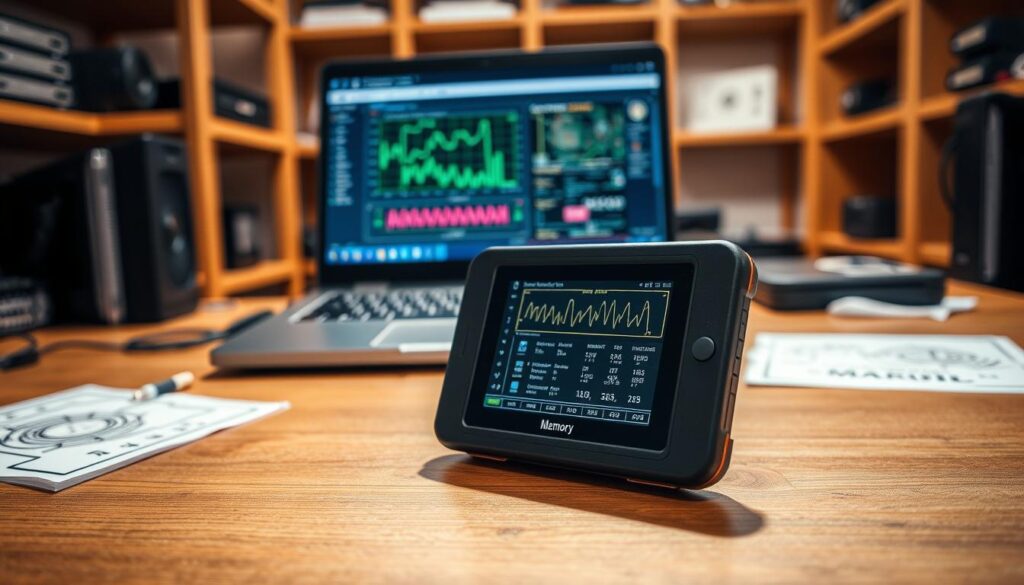
A clear diagnostic routine tells you whether the problem lies with the modules or with software. I run built-in checks first, then move to more thorough tools when needed.
Using Windows Memory Diagnostic
The Windows Memory Diagnostic tool is easy to launch and needs no extra software. I schedule it to run at the next boot and let it complete a full pass.
It is convenient, but less deep than dedicated programs. Use it when you want a quick check to see if the computer reports basic errors.
Leveraging Memtest86
Memtest86 runs outside Windows and inspects modules deeply. I prefer it because no OS activity can mask intermittent faults.
I let Memtest86 run multiple passes and multiple hours when I track down erratic errors that cause a blue screen or data corruption.
“Run a memory diagnostic long enough to catch intermittent errors — short tests miss many real failures.”
| Tool | Runs Outside OS | Best Use |
|---|---|---|
| Windows Memory Diagnostic | No | Quick checks, initial scans |
| Memtest86 | Yes | Deep analysis, intermittent errors |
| Boot-time vendor tools | Depends | Brand-specific module tests |
I look for persistent errors and data corruption before I replace any parts. That way I protect files and avoid unnecessary purchases.
Physical Inspection and Hardware Troubleshooting
Dust and a loose stick can mimic deep system faults, so I always start with a hands-on look.
I open the case and inspect the modules, slots, and nearby components. I recommend cleaning a laptop or desktop every 1–2 years to prevent overheating and hardware failure. A clogged fan raises temperature and can cause a persistent blue screen during heavy use.
The Impact of Overclocking and Heat
Overclocked systems run hotter and push components beyond standard specs. That can trigger video card glitches or memory errors under load.
When someone reports a blue screen, I first reseat any new ram and confirm proper installation. Improper seating is a common problem that mimics a failed module.
“A loose stick or dirty contacts often looks like a major hardware failure — reseating fixes many cases.”
I also check the ram pins and look for physical damage that causes data transfer errors and performance drops. If the video card seems to fail, test and swap the ram first; I have seen the card blamed when the real problem was a loose module.
Use this quick hardware check before lengthy tests: reseat modules, clean dust, and verify cooling. These steps save time and often restore stable system performance without new parts.
Why Memory Modules Fail
I’ve seen modules die from heat, spikes, and poor installation — and each cause leaves a different trace.
Overclocking pushes ram beyond its rated speed. That extra stress can warp timings and raise voltages, which may cause permanent damage to the delicate circuitry inside modules.
Excessive heat is another common path to failure. I have observed that faulty ram often starts with thermal degradation. Left unchecked, the problem can corrupt system files and harm other components.
The Impact of Overclocking and Heat
When you ramp clocks or voltages, intermittent errors appear first. Those errors can turn into a full ram failure that ruins data during writes.
- I advise using a quality surge protector to prevent power spikes that destroy modules.
- Keep good airflow and monitor temps to protect memory and the hard drive during heavy use.
- Reseat modules and check contacts after any physical shock to avoid cascading hardware issues.
“A failed stick can corrupt files and even make a drive behave unpredictably.”
Best Practices for Preventing Future Hardware Issues
A short maintenance routine can stop many failures before they start. I recommend simple, repeatable steps that fit into routine care.
I have spent over 30 years supporting systems, and I trust a memory diagnostic tool to spot trouble early. Run a memory diagnostic after installation and at regular intervals.
Keep software and firmware current. Updates patch bugs and improve stability for drivers that touch memory and other components.
- Back up your data and files regularly to avoid loss from sudden failure.
- When you install new ram, run a full diagnostic tool before trusting it for daily work.
- Check ram health periodically and run brief tests during routine maintenance windows.
“Use a memory diagnostic tool proactively — it’s the fastest way to catch intermittent errors.”
| Practice | Frequency | Why it helps |
|---|---|---|
| Run memory diagnostic | After installation; quarterly | Detects failing modules early |
| Software and firmware updates | Monthly | Fixes stability and driver bugs |
| Back up data and files | Daily or weekly | Protects against unexpected hardware failure |
Conclusion
A quick check can stop a failing module from wrecking your day. I outlined the main signs to watch for, from the dreaded blue screen to random crashes and video card glitches. These clues help you decide when to run tests and swap sticks.
Use the diagnostic tools I described—start with a fast scan, then run a deeper test in Windows or Memtest86 when needed. Early diagnosis limits data loss and restores performance faster.
Be proactive: back up files, monitor temps, and run routine checks. Spotting ram failure early protects your computer and keeps the system reliable over time.
FAQ
How can I tell if my memory modules are failing?
I watch for repeated crashes, blue screen errors, corrupted files, and apps that freeze or refuse to open. I also listen for motherboard beep codes at boot and check Windows Event Viewer for memory-related errors. If multiple symptoms appear together, I run a memory test to confirm.
What quick tests should I run first on a system showing instability?
I start with Windows Memory Diagnostic for a basic scan, then use MemTest86 for a deeper pass. I also reseat the modules, swap slots, and test one stick at a time to isolate a faulty module or slot before replacing parts.
How do beep patterns help diagnose hardware problems?
I refer to the motherboard manual for specific beep codes, since patterns differ by BIOS vendor like AMI, Award, or UEFI. Long or repeated beeps often point to memory faults; a manufacturer’s list tells me whether it’s a DIMM, controller, or other component.
Can overheating or overclocking cause memory failure?
Yes. I find that sustained high temperatures and aggressive overclock settings can destabilize memory and shorten module life. I recommend returning voltages and frequencies to stock and improving case airflow to prevent recurring errors.
What does MemTest86 reveal that Windows Memory Diagnostic might miss?
MemTest86 performs multiple stress patterns and checks at a lower level, so it catches subtle errors that the built-in tool may skip. I run several passes overnight to increase confidence in results, especially when data corruption is involved.
How should I physically inspect RAM and the motherboard?
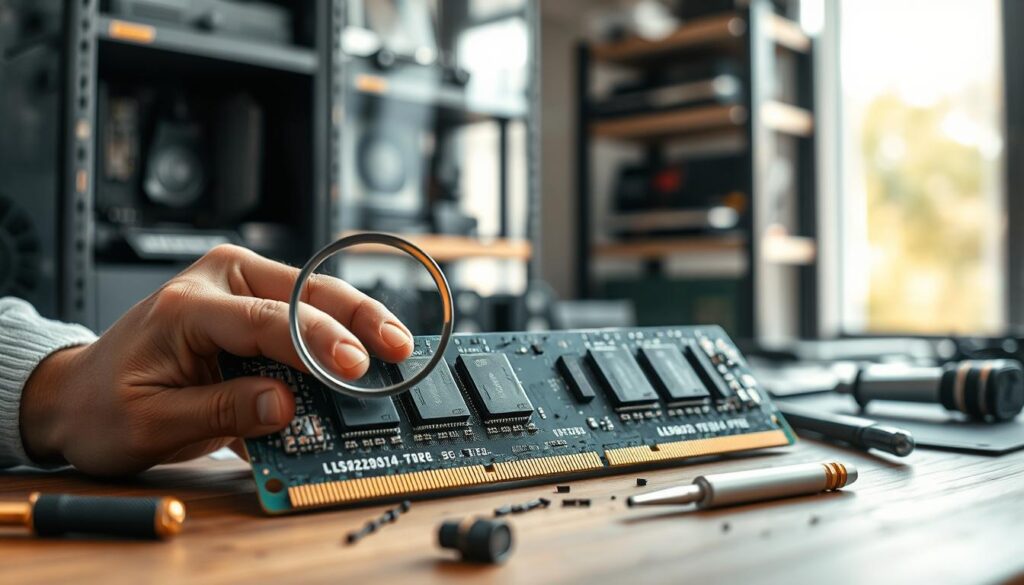
I power down, unplug, and ground myself, then remove modules to look for bent pins, scorch marks, or corrosion. I check slot contacts and clean them gently with compressed air. If a slot seems faulty, I test each stick in different slots to pinpoint the issue.
Could my hard drive problems actually be caused by memory issues?
Absolutely. I’ve seen file corruption and failed installations caused by memory errors. If files become unreadable or checksums fail, I treat memory tests as a priority before assuming the storage device is at fault.
How long do modern memory modules typically last?
I expect DDR4 and DDR5 modules to last many years under normal conditions, often 5–10+ years. Lifespan shortens with overclocking, poor cooling, or voltage stress. Regular monitoring and conservative settings help extend service life.
When should I replace a module instead of troubleshooting further?
I replace a stick when it consistently fails multiple test tools, shows physical damage, or causes crashes across different systems. If troubleshooting like slot swaps or BIOS updates doesn’t help, replacement is the safest route.
What roles do BIOS updates and settings play in diagnosing memory errors?
I check for BIOS updates that improve memory compatibility and stability. I also reset XMP or custom timings to default to rule out misconfigured profiles. Sometimes a firmware update resolves intermittent errors without hardware changes.
Are there any warranty or return steps I should follow for new modules?
I keep receipts and serial numbers, test new modules immediately, and contact the seller or manufacturer if problems appear. Many brands like Corsair, G.Skill, and Crucial offer RMA support for defective units under warranty.
What preventative steps reduce the chance of future memory-related failures?
I maintain good case cooling, avoid aggressive overclocking, use quality power supplies, and run periodic diagnostic scans. I also ensure proper ESD handling during installs and keep BIOS and chipset drivers current.

Marcus is a Senior Hardware Analyst with over 15 years of experience in system architecture and PC building. Specializing in memory optimization and overclocking, he translates complex RAM specifications into practical, easy-to-understand guides. When he isn’t bench-testing the latest DDR5 kits for AllTopSoft, Marcus is likely tinkering with his custom liquid-cooled home server.