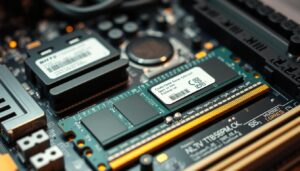

I often tweak my system to keep my favorite programs running smoothly. When I play Minecraft with heavy mods, the default settings can feel tight. Mojang’s base game usually runs fine with 2 GB, but mods push demands.
I will show you how I press the right buttons and edit the default launcher so your game and other apps can load with the right amount of memory.
This short guide walks me through the way my computer handles data and file loads. You will learn how to edit simple options to improve overall performance. Whether you are a new user or a veteran, managing the amount for programs is a vital skill in any modern operating system.
Key Takeaways
- I explain pressing the right controls and editing launcher settings.
- You will see how memory and ram affect game performance.
- This helps when running mods or handling large data files.
- The steps suit both new and experienced users.
- Small edits can prevent crashes and improve load time.
Understanding How Memory Impacts Application Performance
Understanding how my computer’s short-term memory works helps me spot performance issues fast. Short-term memory, or memory, holds active data so programs can access it quickly. When that pool fills, the system slows and apps stutter.
The Role of Short Term Memory
I treat ram as the working desk for my computer. If the desk is too small, I juggle files and slow down the whole workflow. Specific game settings and heavy mods can demand more space on that desk.
Identifying Performance Bottlenecks
I watch the memory used by a running game and check system monitors for spikes. If memory used stays near full during play, the game will lag or even crash — a clear sign of a problem.
- I track memory used and overall usage during stressful sessions.
- I keep the operating system some overhead so mods and programs don’t clash.
- By finding these bottlenecks, I figure out how much ram I actually need to keep applications running smoothly.
“Monitoring memory used lets me fix performance before it becomes a crash.”
Essential Steps Before You Allocate More RAM
Before I change any settings, I run a quick check of my system’s total memory and software versions. This prevents simple mistakes that cause crashes or slowdowns.
Check system type first: if you run Minecraft on a 32-bit system, you cannot assign over 1 GB. I verify the OS size so I don’t waste time on impossible tweaks.
Confirm total memory and leftover needs. I never give the game more than half of the installed memory because the operating system and background programs need resources too. That keeps overall usage stable.
I also check my Java version. An old Java build may stop me from assigning above 2 GB. Finally, I review launcher settings and note the amount ram I have free.
- I check total memory and verified OS size.
- I confirm Java is up to date to avoid allocation limits.
- I ensure the system retains enough memory for background programs.
“Verifying these basics saves time and prevents a common problem: leaving too little data space for other programs.”
How to Allocate More RAM to Specific Programs

Below, I explain how I change launcher and Java options so a specific game gets the memory it needs.
Using the Default Launcher
I open my default launcher and go to the installation tab. There I edit the version and open the Java options.
I find the JVM Arguments field and change the -Xmx value. For example, change -Xmx2G to -Xmx4G to assign 4 GB.
I press save and then start the game to confirm the new settings load.
Configuring Third Party Launchers
With launchers like ATLauncher or Technic, I use the settings menu to set memory usage for mods and profiles.
Each launcher lists a memory slider or a field to edit numbers. I pick the profile, edit the setting, and save.
Adjusting Java Settings
I check my Java options in the launcher so the system accepts the new values. An old Java build may block higher values.
I keep a little headroom so the computer and background applications run without strain.
“Small edits in launcher and Java settings often fix load time and reduce crashes.”
| Method | Where to Edit | Typical Setting |
|---|---|---|
| Default launcher | Installation → JVM Arguments | -Xmx4G for 4 GB |
| ATLauncher / Technic | Settings → Memory | Slider or numeric MB/GB |
| Java runtime | Launcher Java options | Use modern Java build and matching -Xmx |
Managing Memory Settings on Dedicated Servers

When I run a multiplayer server, I set explicit startup commands so the server keeps stable under load. Dedicated hosts need clear numbers in their start scripts. That keeps the game and connected users steady.
Creating Custom Run Scripts
I create a simple text file on the server and enter the Java line that sets the memory limits in megabytes. For a 3 GB example I use java -Xmx3072M -Xms3072M -jar server.jar nogui PAUSE.
Then I rename the file to run.bat and check the server.jar file name so the script can load the file without errors. Small typos there will stop the whole process.
- I use megabytes in the command to avoid wrong size values.
- I double-check the numbers so the operating system keeps enough space for background programs.
- For heavy modpacks I often choose a hosted option like GPORTAL, which supports up to 18GB for large player counts.
“A clear run script makes server restarts predictable and keeps game sessions smooth.”
Conclusion
Finally, I summarize the practical way I set the correct memory for my favorite programs. This guide helped me decide when to adjust ram and how to allocate ram safely so I avoid common errors.
I can now tune the amount ram a game uses without starving the computer or background apps. The steps keep my system stable and boost overall performance.
Whether I edit the default launcher, change a server file, or update Java, I spend a little time up front and save a lot of play time. I feel confident running heavy mods and opening large files with fewer crashes.
FAQ
What does the guide "Step-by-Step Guide to Allocating More RAM to Specific Applications" cover?
I walk you through practical steps to assign extra memory to apps, including launcher settings, Java tweaks, and server run scripts so your programs run smoother without guessing.
How does short-term memory affect application performance?
Short-term memory, or the memory an app uses while running, determines how quickly it accesses active data. If it’s too small, the program swaps data to disk and slows down. I explain how to spot that behavior and reduce slowdowns.
How can I identify performance bottlenecks before changing memory settings?
I recommend checking Task Manager or Activity Monitor, watching CPU and disk use, and profiling with tools like Windows Resource Monitor or Performance Monitor. That tells you whether memory is actually the issue.
What should I check before I change an app’s memory settings?
Back up settings, close unnecessary apps, note current memory use, and verify system limits. I also suggest ensuring you have enough physical memory and that your OS is 64-bit when adjusting large memory values.
How do I change memory settings using a default launcher?
Many default launchers have an options tab or advanced settings where you can edit a memory field. I show how to open the launcher’s settings and modify the value safely so the app starts with the new amount.
How do I configure third-party launchers to give more memory to a program?
Third-party launchers usually expose a profile editor or JVM arguments. I explain where to paste or edit the memory parameter, how to test it, and how to revert if the app fails to start.
What Java settings should I adjust for Java-based applications?
For Java apps, editing the JVM flags like -Xms and -Xmx controls initial and maximum memory. I show recommended ranges and how to add these flags to startup commands or launcher arguments without breaking compatibility.
How do I manage memory on a dedicated server?
On a dedicated server, I advise editing startup scripts, setting reasonable JVM or application limits, monitoring with top or htop, and ensuring swap and overcommit settings match your workload.
Can you give an example of creating a custom run script for a server application?
Yes—I provide a template approach: include environment checks, set the memory flags, log outputs, and add graceful restart commands. I also recommend testing in a staging environment first.
How much memory should I assign to a game or modded application?
The right amount depends on the game and installed mods. I suggest starting with moderate increases, monitoring memory use while playing, and avoiding values that exhaust system RAM or leave the OS starving.

Marcus is a Senior Hardware Analyst with over 15 years of experience in system architecture and PC building. Specializing in memory optimization and overclocking, he translates complex RAM specifications into practical, easy-to-understand guides. When he isn’t bench-testing the latest DDR5 kits for AllTopSoft, Marcus is likely tinkering with his custom liquid-cooled home server.