
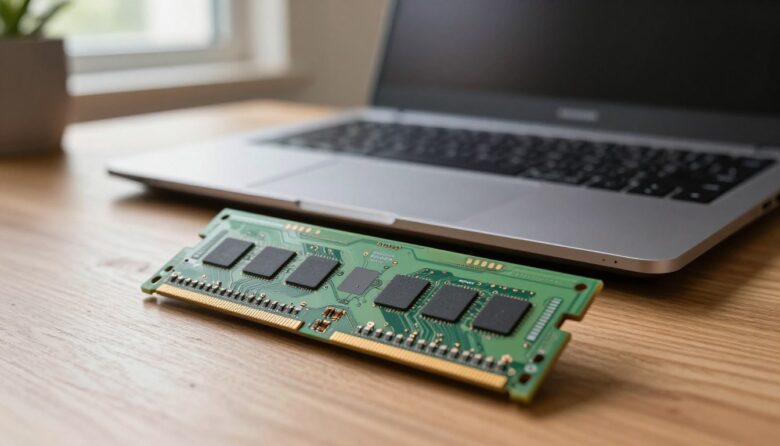
I wrote this short guide because I wanted a clear, practical way to breathe new life into older machines. Many business and gaming systems let you add more memory, while premium devices sometimes have components soldered in place.
Adding more memory is a cost-effective step that often improves everyday responsiveness and multitasking. I will show you how to check your device and what options make the most sense.
Follow each step I provide and you can handle more tasks at once without a sluggish feel. I recommend reviewing your manufacturer’s documentation to confirm support before you start.
Key Takeaways
- I created this guide to help you perform a successful laptop memory refresh.
- Adding memory is one of the most affordable ways to boost performance.
- I explain how to verify if your device supports upgrades and which options work best.
- Following simple steps reduces risk and extends the useful life of your hardware.
- Check manufacturer docs first, since some premium models limit changes.
Understanding the Role of System Memory
Think of system memory as the desk where your computer lays out the files it needs right now. This short-term workspace keeps apps and active data within quick reach so you can switch tasks without waits.
System memory, or RAM, is volatile storage. Unlike your hard drive or SSD, it clears when power is off. That makes it ideal for fast reads and writes but not for long-term storage.
I explain memory in plain terms because it directly affects overall performance. The more programs you run at once, the more space this workspace needs. When it fills, the system uses slower storage as a fallback. That swap process hurts speed and responsiveness.
- System memory stores data your computer actively uses for quick access.
- Any information in RAM disappears when you shut the device down—it’s volatile.
- With enough memory, your computer handles more tasks smoothly and without delays.
Identifying Signs Your Device Needs a Laptop RAM Upgrade
When your machine struggles with basic tasks, visible signs usually point to limited working memory.
I watch for a few clear symptoms that mean action is needed. Slow app launches and long delays when switching programs are the most common.
https://www.youtube.com/watch?v=XvpkUPgu8ss
Performance Bottlenecks
Apps stutter or seize under load. If gaming or heavy multitasking causes lag, your computer may be hitting its memory ceiling. Multiple open tabs often make the system slow or unresponsive.
Memory Error Notifications
Frequent “low memory” alerts or crashes are a clear red flag. On Windows systems, these messages usually mean the device has reached its capacity and needs more active memory to restore a smooth experience.
- Too many tabs crash the browser or freeze the computer.
- Programs take longer to open and respond.
- Memory error alerts like “out of memory” appear often.
- A focused upgrade ram effort can resolve these problems quickly.
Verifying Hardware Compatibility and Capacity
Before you order parts, I check the device to confirm what it actually supports. This saves time and prevents costly mistakes when adding more memory.
Start with an inventory: open Task Manager with Ctrl + Shift + Esc and view the Performance tab to see current memory and used capacity. Then check the manufacturer’s documentation for the maximum supported capacity and supported memory type.
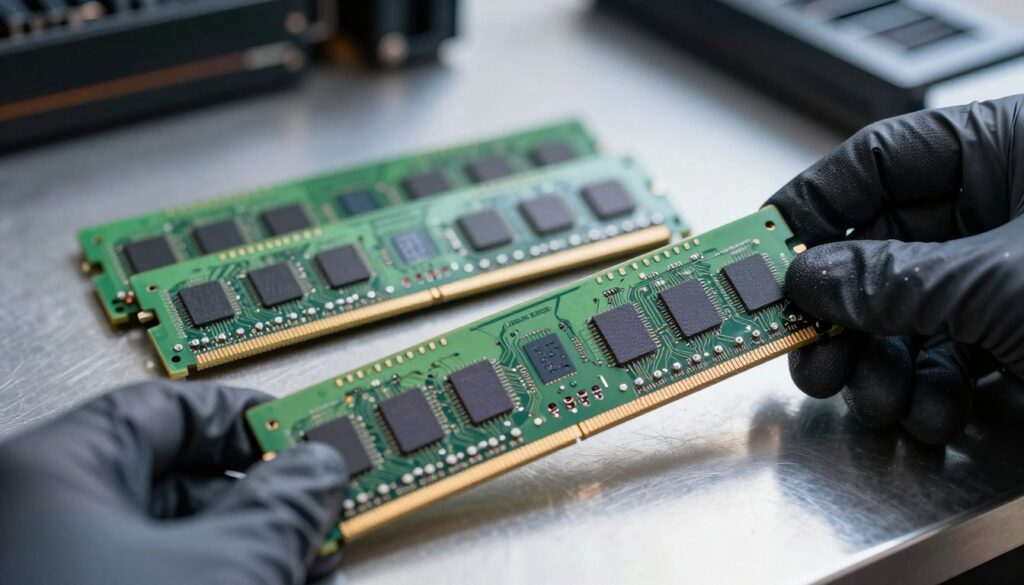
Checking Available Slots and Specifications
I look inside the access panel or use vendor tools from Crucial or Kingston to identify the correct SO‑DIMM type. Most machines take DDR3, DDR4, or DDR5; you must match generation and MHz speed to the motherboard.
- Confirm how many slots are free—many systems have two slots and a fixed total capacity.
- Ensure Windows is 64‑bit; 32‑bit systems cannot use more than 4GB effectively.
- For gaming or video work, match the new memory modules’ speed and timing to improve performance.
- Verify slot specs to avoid forcing an incompatible module that could damage the board.
Installing Your New Memory Modules
Before you touch any components, I walk through a calm, step-by-step process to install memory safely. This keeps both the hardware and your data protected.
Safety Precautions
Always power down completely. I turn the laptop off, unplug the power, and remove the battery to eliminate electrical risk.
I work on a nonstatic surface and ground myself. Small shocks can damage delicate modules and the system.
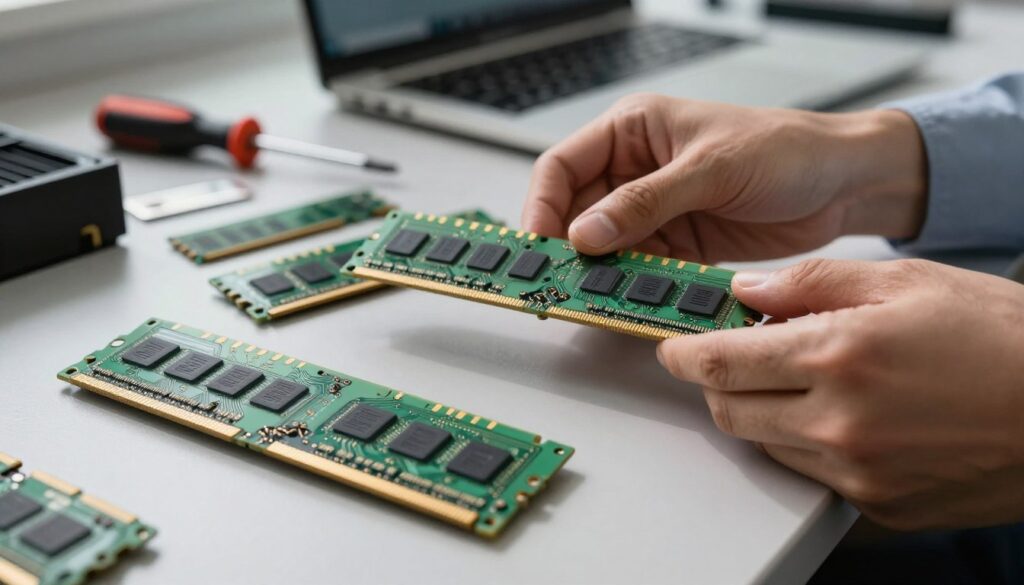
Opening the Chassis
I use a small Phillips-head screwdriver to remove the bottom panel carefully. I keep screws in a dish so they don’t get lost.
Once open, I locate the memory slots and gently release any existing module clips to free the slot.
Seating the Hardware
I align the new module with the slot and insert it at a 30-degree angle. Then I press down firmly until the side clips click into place.
- Reassemble the panel and reconnect power.
- On Windows, I open Task Manager to confirm the system recognizes the added memory.
- Finally, I test multitasking by opening multiple browser tabs to feel the speed and performance gains.
Conclusion
To conclude, I want to give you a simple action plan that turns what you learned into faster, more reliable systems.
Start by verifying support and capacity for your specific laptop model. That step saves time and prevents buying incompatible products.
When you select memory modules, match type and speed, then follow safe installation steps. The result is noticeable gains in multitasking, gaming, or video work and better overall performance.
Taking a bit of time to perform this hardware maintenance yourself saves money and improves your troubleshooting skills. If your system is too old to accept modern parts, consider new storage or a newer machine as the next option.
FAQ
How do I know if my aging device needs a memory boost?
I look for slow multitasking, long app load times, frequent freezing during video editing or gaming, and repeated “low memory” warnings in Windows. If my computer struggles with basic tasks or lags when I switch between tabs, it’s a clear sign the system could use more modules or higher capacity. I also check Task Manager to see memory usage under real-world workloads.
What role does system memory play in overall performance?
System memory stores active data so the processor can access it quickly. When I have more capacity, apps run smoother and I can keep more browser tabs, editing projects, or virtual machines open without slowdowns. Faster memory and the right configuration reduce bottlenecks between the CPU and storage, improving responsiveness for gaming and video work.
How can I check which memory types and speeds my device supports?
I find the device model on the manufacturer’s support page or use tools like CPU-Z to read current module specs. The motherboard manual or Dell, HP, Lenovo support pages list supported DDR generation, maximum capacity per slot, and recommended speeds. That tells me whether to buy DDR4, DDR5, and which frequency to match.
How many slots should I expect and how do I check available ones?
I open the service manual or run a hardware utility to see total slot count and populated slots. On many consumer systems there are two slots; some thin-and-light models have soldered memory with no slots. If a slot is free, I can add a stick; if both are full, I may replace modules with higher-capacity ones.
Can mixing different memory modules cause problems?
Yes. I avoid pairing modules with different speeds, voltages, or timings. Mixing can force the system to run all sticks at the slowest speed or cause instability. For best results I buy matched pairs from reputable brands like Crucial, Kingston, or Corsair when possible.
Are there safety steps I should follow before opening the chassis?
I always power down, unplug the charger, and remove the battery if it’s removable. I ground myself to prevent static discharge by touching a metal case or using an anti-static strap. I work on a clean, flat surface and keep screws organized so I don’t lose them during reassembly.
What’s the basic process for seating new memory modules?
I open the access panel, spread the retaining clips, align the module’s notch with the slot key, and press firmly until the clips snap into place. Then I reattach the panel, reconnect power, and boot to confirm the system recognizes the new capacity in BIOS or Windows.
How long does a typical installation take?
For most systems, the whole process—unboxing, grounding, opening, installing modules, and testing—takes about 15–30 minutes. More complex devices or those with soldered memory require longer or professional service.
Will adding memory improve storage-heavy tasks like large file transfers?
Adding memory helps by allowing more data to be cached in RAM, which speeds up workflows like editing large video files or handling big photo libraries. It doesn’t increase SSD or HDD bandwidth, but it reduces reliance on slower virtual memory and page files during intense workloads.
How do I verify the new modules are detected and working correctly?
I check BIOS/UEFI for total installed capacity and run Windows Task Manager to confirm available memory. I also run a memory diagnostic like Windows Memory Diagnostic or MemTest86 for stability testing to catch errors early.
What capacity should I choose for gaming or content creation?
For modern gaming I aim for at least 16 GB; for heavy video editing, 32 GB or more is preferable. I consider the operating system, background apps, and the software’s recommended specs. Buying slightly above my immediate needs helps future-proof the system.
Are there any power or thermal impacts when I install higher-capacity modules?
Higher-capacity modules can draw a bit more power, but in most notebooks this is negligible. I monitor temperatures after installation; if the system runs hotter, I ensure vents are clear and update thermal profiles or drivers. Proper airflow and clean fans usually prevent thermal issues.
Should I update firmware or drivers after changing memory?
I make sure BIOS/UEFI and chipset drivers are current, as updates can improve memory compatibility and stability. I don’t expect to need OS-level driver changes for memory itself, but firmware updates sometimes add support for faster speeds or higher densities.
Where should I buy reliable memory modules and what brands do I trust?
I buy from established vendors and retailers like Newegg, Amazon, Best Buy, or directly from manufacturers. Reliable brands I trust include Crucial (Micron), Kingston, Corsair, Samsung, and SK hynix. I check warranty terms and return policies before purchasing.
Can I upgrade if my device has soldered memory?
If memory is soldered to the board, I usually can’t add or replace modules. In that case I consider other upgrades like switching to a faster SSD or replacing the whole device. Some specialized repair shops can perform solder-level changes, but that’s costly and risky.

Marcus is a Senior Hardware Analyst with over 15 years of experience in system architecture and PC building. Specializing in memory optimization and overclocking, he translates complex RAM specifications into practical, easy-to-understand guides. When he isn’t bench-testing the latest DDR5 kits for AllTopSoft, Marcus is likely tinkering with his custom liquid-cooled home server.