Choosing between DDR4 and DDR5 can feel confusing. This guide helps U.S. builders, upgraders, gamers, and creators decide which computer memory makes the most sense for their needs. We focus on practical factors: real-world performance, cost-per-GB, compatibility with motherboards and CPUs, power and thermal behavior, and the likely upgrade path for desktops and laptops.
DDR5 brings higher raw bandwidth, on-die ECC, and smarter channel architecture, while DDR4 stays widely compatible, cheaper per gigabyte, and often “good enough” for everyday use and many gaming rigs. Throughout this article you’ll find clear comparisons and actionable advice for a ram upgrade so you can choose the best ram for gaming, content creation, or general productivity.
Use this guide section by section. We’ll cover core memory concepts, benchmark results, price trends, compatibility checks, and buying tips so you can make a confident purchase decision that matches your budget and performance goals.
Key Takeaways
- DDR5 offers higher bandwidth and newer features, but costs more per GB than DDR4.
- DDR4 is broadly compatible with older platforms and often sufficient for many gamers and office users.
- Consider motherboard and CPU support before planning a ram upgrade to avoid compatibility issues.
- For competitive gaming, frequency and latency balance matters; for content creation, capacity and bandwidth matter most.
- Power draw and thermal behavior differ between generations; factor these into laptop and small-form-factor builds.
Overview of DDR4 and DDR5 Architectures
Modern computer memory has split into two clear generations. One focuses on mature, cost-effective designs. The other pushes higher bandwidth and new on-module features. This overview lays out the technical gaps, a brief history of adoption, and the use cases that favor each generation of memory ram.
Key technical differences between DDR4 and DDR5
Data rates and bandwidth mark the first large difference. Typical ddr4 ram retail speeds range from about 1600 to 3200 MT/s. DDR5 architecture starts at 4800 MT/s and scales well beyond 6400 MT/s on many vendor modules. Higher transfer rates boost throughput for bandwidth-hungry tasks.
Channel and bank design also differ. A DDR4 DIMM exposes a single 64-bit channel. DDR5 splits each DIMM into two independent 32-bit subchannels. That change improves parallelism and allows better utilization in multithreaded workloads.
On-die features and signal integrity improved with DDR5. The newer spec adds on-die ECC, Decision Feedback Equalization, and expanded bank groups to raise concurrency. Those advances help with stability at extreme speeds.
Power delivery moved onto the module with DDR5’s PMIC. Nominal voltages shift from roughly 1.2V on DDR4 to about 1.1V on DDR5. The different signaling and on-module power control change thermal and power profiles for laptop and desktop designs.
Latency presents a trade-off. DDR5’s higher frequencies often come with larger CAS numbers in cycles. Measured in nanoseconds, raw latency can be similar or slightly higher compared to ddr4 ram depending on frequency and timings.
Historical development and market adoption
DDR4 gained momentum in the mid-2010s and became the default for most consumer and enterprise platforms through the late 2010s. It powered mainstream desktops from Intel and AMD and a wide range of laptops from makers like Dell and Lenovo.
JEDEC finalized DDR5 in 2020. Consumer adoption began with Intel’s Alder Lake platforms around 2021–2022. AMD followed with platform updates that added support over time. Early uptake of DDR5 was gradual because ram compatibility and price favored existing DDR4 systems.
Market patterns show DDR4 held dominance for budget and value systems even after DDR5 arrived. As module production scaled and prices dropped, adoption of DDR5 architecture increased across high-end desktops, workstations, and premium laptops.
Typical use cases for each generation
Use cases determine the best choice for many buyers. DDR4 remains ideal for cost-conscious upgrades and builds where motherboard and CPU support only DDR4. Gaming rigs on a budget often choose ddr4 ram for solid performance per dollar.
DDR5 suits cutting-edge systems and workloads that need high sustained bandwidth. Video editors, scientific computing, and large-scale data tasks can benefit from DDR5 architecture. Enthusiast builds and future-proof laptop models also lean toward DDR5 when ram compatibility and platform support are in place.
| Characteristic | DDR4 | DDR5 |
|---|---|---|
| Typical MT/s (retail) | 1600–3200 | 4800–6400+ |
| Channel structure | Single 64-bit per DIMM | Two independent 32-bit subchannels |
| On-module power | No PMIC; board-managed | PMIC on-module |
| On-die features | Limited | On-die ECC, DFE, more bank groups |
| Nominal voltage | ~1.2V | ~1.1V |
| Best for | Budget builds, legacy systems, many gaming rigs | High-bandwidth workloads, enthusiast rigs, future-proofing |
| Ram compatibility notes | Widely compatible with older motherboards | Requires DDR5-capable motherboard and CPU |
Memory Ram: Core Concepts Every Buyer Should Know
Buying memory can feel technical and confusing. This brief guide breaks down the basics so you can make a smart ram upgrade without stress. Clear terms help you compare memory modules, check ram compatibility, and match parts to your system.
What exactly is Memory Ram and how it affects performance
Memory Ram is volatile computer memory the CPU uses to hold active data and code. Faster access to that data makes apps feel snappier, reduces loading times, and improves multitasking. When your system runs low on RAM, it swaps to storage and slows dramatically.
Capacity, frequency, latency — what matters most
Capacity, measured in gigabytes, is the single biggest factor for multitasking and large projects. For 2026 standards, 8GB is minimal for basic tasks, 16GB suits most gamers, and 32GB or more fits editors and heavy multitaskers.
Frequency (MT/s) raises bandwidth. Higher MT/s often benefits rendering and data-heavy workloads, but some games gain little from raw speed alone. Latency shows delay in cycles; lower CAS and tighter timings reduce wait time. Look at absolute latency in nanoseconds when comparing modules with different frequencies.
How memory interacts with CPU and motherboard
Modern Intel and AMD chips include the memory controller, so supported speeds and maximum capacity depend on CPU and motherboard chipset. BIOS updates can expand support for faster or newer memory modules.
Use matched kits in the correct DIMM slots to enable dual- or quad-channel operation. That pairing doubles or quadruples effective throughput versus single-channel configurations. Check your motherboard QVL and CPU specs before a ram upgrade to confirm ram compatibility.
Quick buying checklist
- Match capacity to your workload: 16GB for gaming, 32GB+ for creation.
- Prioritize motherboard and CPU support over marketing speeds.
- Buy memory modules as matched kits for channeling benefits.
- Enable XMP or EXPO profiles in BIOS for advertised frequencies, when supported.
Performance Comparison: Real-world Benchmarks
This section looks at how memory choices affect real tasks. We focus on gaming, productivity workloads, and latency-sensitive tests. The goal is to show practical differences between ddr4 ram and ddr5 performance without jumping to final judgments.
Gaming rigs often measure success by smooth frame delivery and consistent frame-time behavior. Tests at 1080p with mainstream CPUs can show modest FPS gains when moving from ddr4 ram to DDR5, especially in CPU-bound titles. Open-world and simulation games may benefit more from higher memory bandwidth because they stream assets and handle many objects at once.
Frame-time stability matters as much as peak frames. In some engines, higher bandwidth reduces frame-time spikes, which players notice as stutter. Real-world results vary by game, GPU, and platform. Many players find that upgrading the GPU or switching to a faster NVMe SSD gives larger perceptible gains than jumping to the best ram for gaming if budget is limited.
Productivity workloads react differently to memory changes. Apps like Blender, Adobe Premiere Pro, and DaVinci Resolve use more memory bandwidth and capacity during rendering and encode passes. In these scenarios, computer memory with higher throughput can shorten job times and improve responsiveness for large projects.
Developers who compile large codebases or run several virtual machines at once often see meaningful throughput improvements with DDR5. Higher effective bandwidth helps parallel workloads and heavy I/O patterns. Memory capacity also matters, so choosing sufficient memory ram can prevent swapping and preserve speed.
Synthetic benchmarks highlight raw numbers. Tools such as AIDA64 and SiSoftware Sandra report clear bandwidth gains for DDR5 performance over ddr4 ram. Latency in nanoseconds can be slightly higher on some DDR5 modules depending on timings. Benchmarks alone do not always map directly to user experience.
Latency-sensitive applications, databases, and certain competitive games may favor lower-latency ddr4 ram over higher-bandwidth DDR5 in specific builds. Mixed test results show that bandwidth and latency trade-offs must be considered for the target workload and platform.
Keep test conditions in mind when reading results. CPU, GPU, motherboard BIOS, and whether XMP or EXPO profiles are enabled all shape outcomes. Run platform-specific benchmarks using your own use cases to decide which memory ram or module best fits your needs.
Pricing and Availability: Cost-per-GB Analysis
The price landscape for memory upgrades shifts with demand, manufacturing cycles, and platform support. Buyers should weigh the cost-per-GB against total system expense and intended use before committing to a ram upgrade.
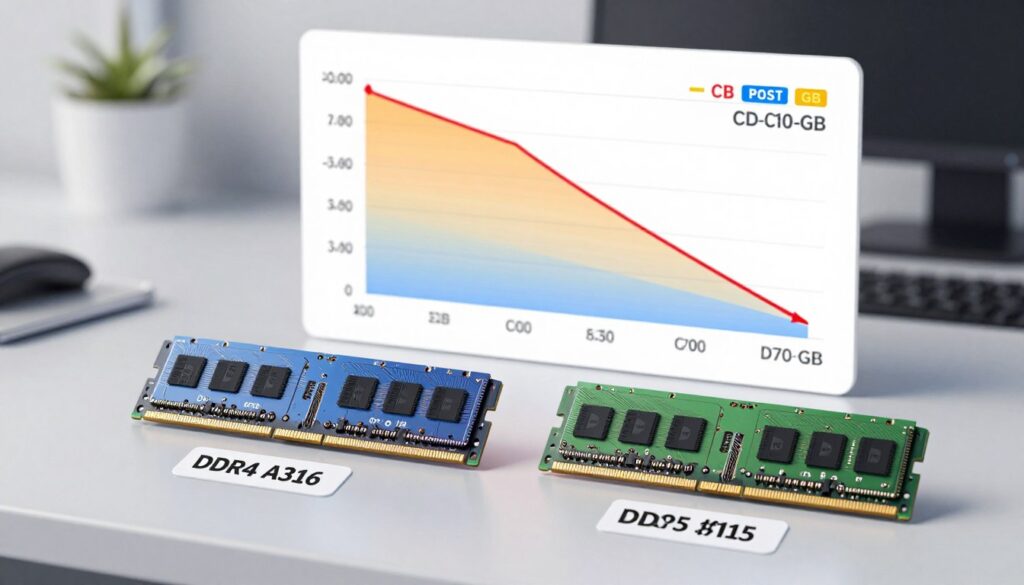
Current market trends show ddr4 ram remains the budget leader. Mature production and large inventories keep its cost-per-GB low for most desktop and laptop kits.
DDR5 launched at a premium, but ddr5 price has eased as yields improved. High-capacity, high-frequency DDR5 kits still command a higher cost-per-GB than comparable DDR4 options.
Short-term spikes can come from wafer shortages, surges in server demand, or geopolitical events. Those supply shocks create volatility in both memory ram segments.
Value buyers often pick DDR4 for mainstream gaming and productivity builds. It delivers solid performance per dollar and minimizes the upfront cost of a ram upgrade.
Enthusiasts and future-focused builders may accept a higher ddr5 price. Higher bandwidth and platform longevity justify the premium when the motherboard and CPU support it.
Chipset compatibility affects pricing through demand. Broad adoption by Intel and AMD mainstream platforms tends to push ddr5 price toward parity over time.
Shopping smart reduces cost-per-GB. Compare total system cost, check QVL lists on ASUS, Gigabyte, or MSI motherboards, and consider sales, open-box kits, or reputable refurb options.
When planning a ram upgrade, factor in motherboard and CPU compatibility, warranty terms, and potential return costs. Those elements often matter as much as the sticker price per gigabyte.
Power Efficiency and Thermal Behavior
The move from DDR4 to DDR5 changed how modules manage power and heat. A brief look at voltages, on-module controls, and cooling needs helps buyers choose the right memory ram for desktops and laptops.
Voltages and power-saving features
DDR4 nominal voltage sits around 1.2V on most modules. DDR5 drops nominal voltage to about 1.1V and adds an on-board power management IC that handles voltages at the module level. This PMIC lets vendors tune behavior per DIMM, improving control over energy use.
On-die error correction in DDR5 reduces some error-related overhead. That lowers the chance of retransmits and can help power efficiency during sustained workloads. Real-world power draw varies. Higher DDR5 frequencies and the PMIC can raise total module power under heavy load despite lower nominal voltage. Idle power often stays similar or slightly better compared with DDR4.
Heat generation and cooling considerations
High-frequency kits—whether DDR4 or DDR5—produce more heat when stressed. Heat spreaders and good airflow matter for stability. Overclocked memory benefits from aftermarket coolers or case fans aimed at the DIMM area.
Desktop builders should choose modules with proven heat spreaders if they plan to push speeds. Many manufacturers such as Corsair and G.Skill offer robust cooling on enthusiast sticks. Keep case airflow healthy to avoid thermal throttling on memory under long renders or intensive benchmarks.
Laptop ram lives inside tighter thermal and power budgets. SODIMM modules rely on the chassis design for cooling. Ultrabooks and gaming laptops from Dell, Lenovo, and ASUS may limit high-power memory profiles to protect system thermals and battery life.
Practical tips for monitoring and stability
Most users can stick with stock modules and default cooling. If you enable XMP or EXPO on a high-speed kit, monitor temperatures and run stability tests. Update BIOS when motherboard makers release memory power and thermal optimizations.
- Check module temperatures after enabling performance profiles.
- Use quality heat spreaders for overclocked DIMMs.
- Balance performance with power efficiency to suit your laptop or desktop needs.
Compatibility and Upgrade Paths
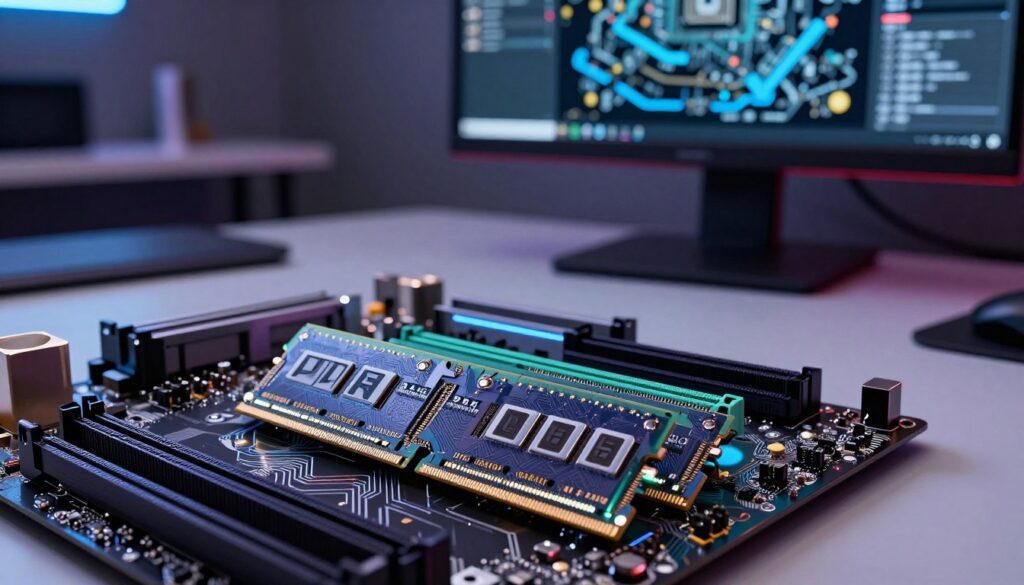
Upgrading memory can be simple when you plan ahead. Physical slot keying prevents mixing generations, so a ram upgrade often means checking the whole platform before buying. Confirming ram compatibility avoids wasted purchases and makes installation smoother.
Motherboard and CPU socket compatibility differences
DDR4 and DDR5 use different DIMM designs and keying, so motherboards accept only one generation. Check your motherboard model and CPU family to see whether the board was built for Intel Alder Lake, Raptor Lake, or AMD AM5. Chipset support matters for supported speeds and features.
How to check if your system supports DDR5
Identify your CPU and motherboard with tools like CPU-Z or Windows System Information. Visit the motherboard vendor page for QVL lists and firmware notes. Review Intel or AMD product pages for official memory specs. A BIOS/UEFI update may be necessary for full ddr5 compatibility or higher memory speeds.
Practical upgrade scenarios: laptop vs desktop
Desktop upgrades are usually straightforward. Buy matched kits for dual or quad channel setups, confirm the generation, and update BIOS when required. Ensure your chosen modules meet voltage and timing expectations for stable operation.
Laptop upgrades need more care. Many thin-and-light models have soldered memory or limited SODIMM slots. Check manufacturer specs for maximum capacity and supported memory types before planning a ram upgrade. Measure clearance and power constraints when installing high-profile modules.
Avoid mixing DDR4 and DDR5 in one build. Plan a complete platform change if you need ddr5 compatibility, because memory ram generations are not backward compatible. Proper preparation keeps performance reliable and reduces return hassles.
Best RAM for Gaming and Content Creation
Picking the right memory ram can shape how a PC feels in games and creative apps. Gamers want smooth frame delivery and low stutter. Creators need large buffers and fast throughput for timelines, exports, and 3D renders. Below are practical specs and configurations to match those goals.
Recommended specs for competitive gaming rigs
Aim for 16GB as the baseline for modern titles. Upgrade to 32GB if you stream, keep many background apps open, or want headroom for future releases. For ddr4 ram platforms, target 3200–3600 MT/s with tight CAS timings to balance latency and frequency. On DDR5 systems, kits in the 5600–6400+ MT/s range can help CPU-limited games, but check real-world gains versus cost.
Buy matched dual-channel kits such as 2x8GB or 2x16GB. Matched memory modules reduce timing mismatches and improve stability. Choose reputable brands like Corsair, G.Skill, Kingston, and Crucial for validated kits and QVL support from motherboard makers.
Memory configurations for video editing and 3D work
Content creation prioritizes capacity first, then bandwidth. Start at 32GB for light video editing and photo work. Move to 64GB or more for 4K timelines, complex comps, and large 3D scenes. DDR5’s higher bandwidth boosts render caches and multi-threaded tasks when datasets grow.
Consider ECC memory for critical projects that need extra stability. ECC options vary by platform, so check workstation motherboards and Intel Xeon or AMD Threadripper support before buying. Professional creators often pick modules from Samsung or Micron-backed lines for proven reliability.
Single vs dual vs quad channel considerations
Dual-channel is standard on most consumer systems and doubles available bandwidth compared with single-channel setups. Use matched pairs in the recommended motherboard slots to get consistent performance across games and editing apps. Avoid single-DIMM builds when maximum performance matters.
Quad-channel appears on high-end desktop and workstation platforms. It yields more bandwidth for heavy multi-threaded workloads. Most gamers and mid-range creators get the best cost-to-performance ratio with fast dual-channel memory modules rather than moving to a quad-channel platform.
Practical rule: match RAM configuration to the workload. Gamers benefit from fast dual-channel 16–32GB kits. Content creators should prioritize capacity — 32–128GB — and favor higher bandwidth such as DDR5 when the budget allows and the motherboard supports it.
Choosing the Right Form Factor: Desktop and Laptop RAM
Picking the correct memory ram form factor keeps upgrades smooth and avoids costly returns. Desktop systems use full-size DIMM modules, while laptops usually rely on SODIMM sticks. Understanding the differences helps you match performance goals with physical space and ram compatibility.
DIMM vs SODIMM:
Desktop DIMM modules are larger, with more pins and options like UDIMM, RDIMM, and LRDIMM for specialized boards. SODIMM parts are compact and made for laptops and small-form-factor PCs. The pin counts and keying differ by generation, so a DDR4 SODIMM will not fit a DDR5 slot. Always confirm the generation and slot type before buying memory modules.
Physical space, profiles, and heat spreaders:
Desktop performance RAM often includes tall heat spreaders and RGB lighting that may collide with large CPU coolers. Low-profile DIMMs exist for tight builds. SODIMMs rarely carry big spreaders because of chassis constraints; some high-performance laptop kits add modest pads or low-profile metal for thermal control. Check case and cooler clearance when choosing modules.
Tips for buying laptop RAM and ensuring compatibility:
- Check if memory is soldered. Many ultrabooks and some MacBooks have non-replaceable RAM. Consult the service manual or manufacturer specs first.
- Verify maximum supported capacity and module density. Some older laptops cannot address high-density SODIMM sticks, so a 32GB module might not work.
- Use vendor compatibility tools from Crucial, Kingston, Corsair, or Samsung to confirm ram compatibility. These tools match models and generations to your system.
- Buy from trusted brands like Corsair, Crucial, Kingston, G.SKILL, or Samsung to reduce the risk of defective memory modules and to secure warranty support.
- If unsure, contact the laptop maker or an authorized service center to avoid voiding warranty and to confirm supported configurations.
When upgrading, balance capacity, speed, and compatibility. A matched pair of SODIMMs in a supported generation often delivers the best real-world gains for laptops, while desktops offer more flexibility with DIMM options and cooling choices.
Common Pitfalls When Buying RAM Modules
Upgrading memory can breathe new life into an older PC, but small mistakes turn a simple ram upgrade into a headache. Read labels, check compatibility, and plan before you spend.
Mismatched speeds and timings
Mixing modules with different speeds or timings usually forces all sticks to run at the slowest common profile. That reduces performance and can trigger instability during heavy tasks.
Using matched kits from the same production run improves dual- and quad-channel operation. If you enable XMP or EXPO profiles, confirm your motherboard and CPU support those settings and be ready to tweak voltage or timings if needed.
Reading spec sheets and avoiding misleading claims
Marketing often cites peak speeds such as “up to 6400 MT/s” that require XMP/EXPO, supported hardware, and sometimes manual tuning. Look for the primary JEDEC-rated speed, module capacity per stick, kit configuration like 2x16GB, CAS latency, and default voltage.
Watch out for knock-off modules or vague “overclocked” claims without vendor validation. Consult reviews from trusted sites and user feedback to confirm real-world behavior before buying memory ram.
Warranty, brand reputation, and return policies
Choose brands known for strong support and clear warranties. Corsair, Crucial (Micron), Kingston, G.SKILL, and Samsung have established service and RMA processes that reduce risk when a stick fails.
Lifetime warranties are common for consumer modules, but check terms and transferability. Buy from retailers with reasonable return windows so you can test ram compatibility and handle DOA units without hassle.
Troubleshooting tips
If you face crashes or errors, run MemTest86 or Windows Memory Diagnostic to isolate faults. Update the BIOS, test single sticks in different slots, and consult your motherboard QVL for vetted memory modules.
When overclocking, increase voltage gradually and monitor temperatures. Keep receipts and serial numbers for RMA, and consider a conservative ram upgrade path if you rely on maximum stability.
| Issue | What to check | Quick fix |
|---|---|---|
| Mismatched speeds/timings | Module SPD, XMP profile, motherboard support | Install matched kit or set manual timings to common stable values |
| False speed claims | JEDEC base speed, required XMP/EXPO, CPU/motherboard QVL | Verify on vendor page and user tests before purchase |
| Incompatible form factor | DIMM vs SODIMM, physical clearance, slot count | Choose correct form factor and check laptop/desktop specs |
| DOA or early failure | Warranty terms, RMA process, retailer return window | Contact vendor, run memory tests, request RMA with proof |
| Stability after enabling XMP/EXPO | Voltage headroom, CPU IMC limits, motherboard VRM quality | Lower profile, increase voltage slightly, or revert to JEDEC |
Conclusion
Choosing between DDR4 and DDR5 comes down to use case, budget, and platform support. For most users in the United States, DDR4 still delivers the best value for a ram upgrade thanks to lower cost-per-GB and wide ram compatibility. If you build a midrange gaming PC or need reliable multitasking on a budget, DDR4 paired with a solid GPU and CPU often gives better real-world returns than chasing raw bandwidth.
DDR5 shines for bandwidth-heavy workflows and forward-looking builds. Content creators, large-memory workstation users, and enthusiasts who prioritize future-proofing will benefit from DDR5’s higher throughput, provided their motherboard and CPU support it. When thinking about the ddr4 vs ddr5 question, weigh capacity first: 16GB is a practical baseline for gaming, while 32GB or more suits video editing and 3D work.
Follow a simple checklist for a smooth ram upgrade. Identify your CPU and motherboard model, confirm ram compatibility and QVLs, and buy matched kits from reputable brands like Corsair, G.Skill, Kingston, or Crucial. Enable XMP or EXPO profiles if supported, update BIOS, and run a stability test after installation.
Armed with clear facts about Memory Ram, pricing, and performance trade-offs, you can pick the best ram for gaming or content creation with confidence. Prioritize capacity and component balance on a budget, or choose DDR5 for bandwidth and future-proofing when your platform allows it.
FAQ
Which offers the best value right now — DDR4 or DDR5 memory RAM?
It depends on your priorities. DDR4 typically gives the best cost-per-GB and broad compatibility, making it the value pick for most gaming and everyday builds. DDR5 delivers higher bandwidth, on-die ECC, and better parallelism, so it’s worth the premium for bandwidth-heavy content creation, professional workloads, or if you want to future-proof a new platform that already supports DDR5.
Will switching from DDR4 to DDR5 noticeably improve gaming performance?
In many games the gains are modest. DDR5 can help in CPU-bound scenarios (especially at 1080p) and reduce frame-time spikes in some open-world or simulation titles. But at higher resolutions the GPU is usually the bottleneck, so upgrading the GPU or storage often yields bigger improvements than upgrading RAM generation alone.
How do capacity, frequency, and latency affect real-world performance?
Capacity matters most for multitasking and large projects — 16GB is the baseline for gaming, while 32GB+ suits content creation. Frequency increases bandwidth (MT/s), benefiting bandwidth-bound tasks; DDR5 starts much higher than DDR4. Latency (CAS and timings) affects access delay; higher frequency can raise cycles but still provide similar or better absolute latency in nanoseconds depending on the kit.
Can I use DDR4 and DDR5 modules together or on the same motherboard?
No. DDR4 and DDR5 use different DIMM designs and keying; motherboards support only one generation. Mixing generations in the same system is not possible — plan your CPU and motherboard choice accordingly before buying memory modules.
How do I check if my motherboard and CPU support DDR5?
Identify your CPU and motherboard model (use tools like CPU‑Z or check system info), then visit the motherboard vendor page and CPU product page for memory support specs and QVL (Qualified Vendors List). For laptops, consult the manufacturer’s spec sheet to confirm SODIMM support or whether RAM is soldered.
For a gaming PC, what RAM configuration should I buy?
Aim for matched dual-channel kits: 2x8GB (16GB) is the modern baseline, 2x16GB (32GB) is recommended for streamers and heavy multitaskers. For DDR4, 3200–3600 MT/s with low CAS is a sweet spot. For DDR5, 5600–6400+ MT/s kits are common for enthusiast builds but check price and platform support first.
For video editing and 3D work, is DDR5 worth it?
Yes, when budget allows. Content creation workloads that depend on memory bandwidth and large working sets benefit more from DDR5’s higher throughput. Prioritize capacity (32GB–64GB+) first, then bandwidth. ECC or workstation memory may be worth considering for mission-critical projects on supported platforms.
How does power consumption and heat differ between DDR4 and DDR5?
DDR5 nominally runs at a lower voltage (~1.1V) and includes per-module PMICs for finer power control. However, higher DDR5 frequencies and PMIC management can lead to slightly higher power under load. High-frequency modules (both DDR4 and DDR5) can generate more heat; use quality heat spreaders and ensure adequate airflow, especially when overclocking.
What are common pitfalls when buying RAM modules?
Watch out for mismatched speeds and timings (mixing kits often defaults to the slowest spec), misleading “up to” speed claims that require XMP/EXPO and platform support, and modules not on your motherboard’s QVL. Buy matched kits from reputable brands with solid warranties and keep seller return options in case of DOA or compatibility issues.
How many times can I safely repeat key RAM-related search terms on a product page without keyword stuffing?
For readable, user-focused content, prioritize clarity over repetition. Use natural language to describe memory RAM, memory modules, RAM upgrade, DDR4 RAM, DDR5, laptop RAM, and ram compatibility where relevant. Avoid unnatural repetition — focus on answering the buyer’s question and providing clear specs and compatibility steps.
Are laptop SODIMM modules different from desktop DIMMs?
Yes. SODIMM is a smaller form factor used in laptops and small-form-factor PCs; it has different pin counts and physical dimensions. DDR4 SODIMM and DDR5 SODIMM are keyed differently, so confirm generation and maximum supported capacity before purchasing. Also check whether your laptop has user-replaceable slots or soldered RAM.
Should I enable XMP/EXPO profiles after installing new RAM?
If your motherboard and CPU support the profiles, enabling XMP (Intel) or EXPO (AMD) is the easiest way to run modules at their advertised speeds. After enabling, test stability with memory stress tools and consider BIOS updates if memory speeds are unstable. If problems persist, try manual tuning or revert to JEDEC defaults.
What practical checklist should I follow before buying RAM for an upgrade?
Identify your CPU and motherboard model. Confirm supported memory generation and maximum capacity. Choose capacity based on use case (16GB gaming, 32GB+ content creation). Buy a matched kit for the target channel configuration. Check QVL and vendor compatibility tools. Update BIOS, enable XMP/EXPO if supported, and test stability after installation.

Marcus is a Senior Hardware Analyst with over 15 years of experience in system architecture and PC building. Specializing in memory optimization and overclocking, he translates complex RAM specifications into practical, easy-to-understand guides. When he isn’t bench-testing the latest DDR5 kits for AllTopSoft, Marcus is likely tinkering with his custom liquid-cooled home server.