
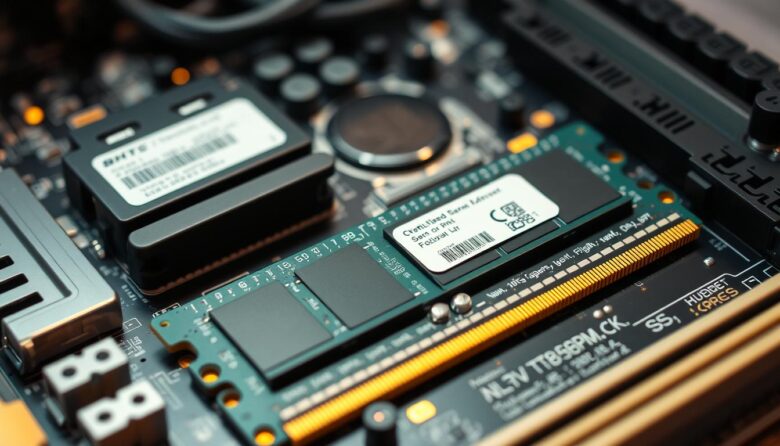
I often tinker with my PC to squeeze more life from old hardware. When I consider upgrading ram, I focus on compatibility first. A wrong match can cause boot failures or erratic behavior.
DDR4 runs at 1.2V while DDR5 typically needs 1.1V, and modern motherboards use 288-pin slots for both types. That electrical and physical difference means I must confirm the type ram my board supports before I buy.
I usually add a single stick to boost memory, but I pay attention to speed and mhz limits set by the cpu and motherboard. If I mix ram modules with different speeds or capacities, the system may downclock or become unstable.
My goal is simple: keep the machine stable while getting a performance lift. I will explain safe pairing, how to match speeds and capacity, and the checks I run to avoid damage.
Key Takeaways
- Check motherboard specs first to confirm physical and electrical compatibility.
- Match type and speeds when possible to reduce instability.
- A single stick upgrade works, but verify mhz limits from the cpu and board.
- Different voltages for DDR4 and DDR5 make mixing risky without care.
- Test the system after installing new memory and monitor for errors.
Understanding the Risks of Mixing RAM Brands
When I swap different memory modules into my PC, I focus first on how they might clash at the electrical and timing level. A common fact is that you can mix ram brands, but doing so raises real risks.
Manufacturers like G.Skill recommend against pairing kits because each set is tested together. If you mix sticks, the internal specifications can differ and cause instability.
Often the system will default to the slowest speeds when modules differ. That means adding a faster ram stick can still run at a lower mhz and hurt performance.
Using two ram sticks of different sizes can also disable dual-channel mode. For example, a 4GB module plus an 8GB module may not deliver the same throughput as matched pairs.
Even with spare slots on the motherboard, mismatched modules can cause boot failures or blue screens. I prioritize same brand and capacity to avoid those issues and keep my system stable.
- Use matched kits when possible.
- Check speed, voltage, and capacity before you install.
- Test the system after installing new modules to catch errors early.
Technical Limitations When You Mix RAM
Hardware rules—voltage, pin layout, and timing—set hard limits when I add different memory. I always verify the basic specs before I open the case.
Physical and Electrical Compatibility
Voltage and pin count matter. DDR4 needs 1.2V and DDR5 needs 1.1V, so they are not interchangeable. The 288-pin layouts may look similar, but forcing the wrong type into a slot can damage the motherboard.
I confirm what my motherboard supports and the supported module configuration. Even identical sizes can have different internal timings that crash the system under load.
Impact on System Speed
When I mix ram modules, the system usually sets all sticks to the slowest speed to stay stable.
- Example: a 3000MHz stick plus a 3600MHz stick will run at 3000MHz.
- My cpu and memory controller manage dual-channel mode and can lose performance if configurations mismatch.
- To avoid data issues, I make sure the motherboard supports the combined capacity and timings before I test the machine.
Best Practices for Installing Different Memory Modules
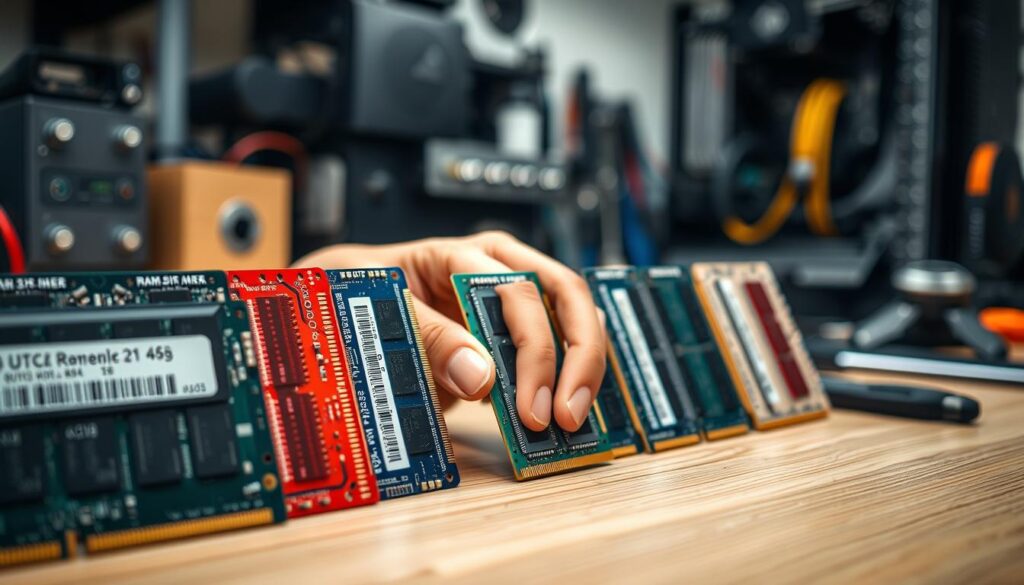
Proper placement and a few checks make the difference between a stable upgrade and a frustrating boot loop. When I upgrade, I consult the motherboard manual first to confirm which slots the board favors for paired sticks.
For dual-channel performance I use the 2nd and 4th slots from the CPU. That layout usually lets the memory controller use full bandwidth and keeps my system responsive.
I try to use two ram sticks of the same size and similar speed. If I must mix ram modules or different sizes, I keep capacities and mhz as close as possible to reduce conflicts.
Quick checklist
- Consult the motherboard manual to identify optimal slots before installing.
- Place limited number ram sticks in slots farthest from the CPU to aid cooling.
- Use two ram sticks in the proper paired slots for best performance.
- Keep total capacity near 16GB for general tasks, but verify what the motherboard supports.
Optimizing Your System for Mixed RAM Configurations
A few careful steps after hardware changes make my machine reliable and fast. I start with firmware checks, then test for stability and confirm memory channels are working as intended.
Updating Your BIOS
I always update the BIOS before I add new ram sticks. New firmware often adds compatibility and fixes that prevent boot errors and BSOD issues.
I check the motherboard supports the exact module type and follow the manufacturer’s update steps.
Testing for Stability
After installation, I run stress tests and memory checks to catch errors early.
If I see crashes or data corruption, I note the failure and adjust mhz or voltage in the BIOS as an example fix.
“Run at least one full memory test and a CPU load test to confirm real-world stability.”
Managing Dual Channel Mode
I verify channel configuration in the BIOS and place sticks in the recommended slots for dual-channel mode.
Matching sizes and similar speeds helps, but if sizes differ I check that the system still reports correct performance and timings.
- Update BIOS to reduce compatibility issues.
- Run stress tests to detect stability problems early.
- Confirm dual-channel mode and correct speeds in BIOS.
Final Thoughts on Mixing RAM
Final Thoughts on Mixing RAM
When I consider adding another stick, I weigh stability over small speed gains. In short, you can mix ram sticks, but the safest path is to match capacity, speed, and type whenever possible.
I prefer tested pairs because they lower the chance of boot failures and odd system behavior. If I must mix ram modules, I test thoroughly, update firmware, and verify the number of slots and supported mhz on my motherboard.
Upgrading ram can improve computer performance, but attention to specifications and a careful stability check keep the system reliable for years.
FAQ
What happens if I mix RAM brands and capacities in my desktop?
I can use different memory modules, but the system will run at the lowest common specifications. That means the motherboard and CPU will default to the slowest frequency and smallest timing among the sticks, which can lower overall performance. Physical size, module rank, and voltage differences can also cause instability if they aren’t compatible.
How do I check physical and electrical compatibility before I install sticks?
I look up my motherboard manual to confirm supported types (DDR4 or DDR5), supported capacities per slot, and maximum total memory. Then I compare voltages and pin layout on the modules from manufacturers like Corsair, Crucial, or G.Skill. If voltages or module types differ, I avoid mixing them or set safe values in BIOS to match the lowest spec.
Will mixing speeds affect my computer’s performance?
I expect the memory controller to run all modules at the slowest module’s frequency (e.g., 3200 MHz down to 2666 MHz). That change can reduce bandwidth and real-world performance in memory‑heavy tasks. For light web browsing or office work, the impact is often minor, but gamers and content creators may notice reduced frame rates or slower exports.
How should I place different modules on the motherboard for best results?
I populate slots according to the manual to maintain dual-channel or quad-channel mode. For two sticks, I use the recommended paired slots (often A2 and B2). For mixed sizes, pairing identical capacities in the same channel helps; for example, put a 16 GB stick in the A slot and another 16 GB in the corresponding B slot, then add a 8 GB in the next free slot.
Can I enable dual-channel mode with uneven module sizes?
I can, but it depends on the motherboard. Many boards support “flex” or “asymmetric” modes where matched portions run in dual-channel and the remainder in single-channel. For best throughput, matched pairs are ideal. Check your board’s specs and test with tools like AIDA64 or CPU-Z to confirm channel operation.
What BIOS settings should I update when combining different memory modules?
I update BIOS to the latest version, then set memory voltage and timings to safe values based on the slowest stick. If available, I disable aggressive XMP/DOCP profiles until stability is verified. Manually setting frequency, CAS latency, and voltage can prevent boot failures and crashes.
How do I test stability after adding new modules?
I run stress tools like MemTest86, Prime95 (blend test), or HCI Memtest for several passes to detect errors. I also run typical workloads and play games to watch for crashes or freezes. If I see errors, I try reseating sticks, swapping slots, or lowering frequency and tightening voltage.
Are there risks to mixing brands like Corsair, Kingston, and Crucial?
I rarely see fatal issues, but differences in PCB design, IC chips, and firmware can produce instability or incompatibility. Using modules from the same vendor and the same kit is safest, but mixing reputable manufacturers usually works when specs match closely.
When should I avoid combining different modules altogether?
I avoid mixing if I need guaranteed peak performance, if modules have widely different voltages or timings, or if the motherboard explicitly warns against it. For mission‑critical workstations or overclocked gaming rigs, buying a matched kit is the better choice.
If I upgrade by adding more memory, how many sticks should I install for best performance?
I follow my platform’s channel count: two sticks for dual‑channel, four sticks for quad‑channel where supported. Installing paired modules maximizes bandwidth. For example, on mainstream Intel or AMD boards, two identical sticks often beat a single larger stick in throughput-sensitive tasks.
Can CPU memory controller limitations affect mixed module setups?
I consider the CPU’s memory controller limits. Some processors support only certain speeds or ranks per channel; exceeding those can force lower speeds or prevent boot. Always check the CPU and chipset specifications when planning mixed configurations to avoid unsupported setups.
What are quick troubleshooting steps if my system won’t boot after installing different modules?
I power down, reseat modules, try single-stick boots to identify a bad module or slot, clear CMOS, and revert to default BIOS settings. If the system boots with one stick but not with another, test that stick in other slots to isolate the problem. Updating BIOS can also resolve compatibility issues.
Do differences in module size (8 GB vs 16 GB) matter for stability?
I can mix sizes, but the memory controller will handle sizes differently across channels. Performance depends on how sizes are paired. Stability is usually fine if voltages and timings are compatible, but ideal setups use matched sizes for predictable behavior and maximum channel utilization.

Marcus is a Senior Hardware Analyst with over 15 years of experience in system architecture and PC building. Specializing in memory optimization and overclocking, he translates complex RAM specifications into practical, easy-to-understand guides. When he isn’t bench-testing the latest DDR5 kits for AllTopSoft, Marcus is likely tinkering with his custom liquid-cooled home server.