I get frustrated when my computer slows down during a busy workday. Since Microsoft said support for Windows 10 ends on October 14, 2026, I pay extra attention to system care to avoid surprises.
When performance drops, I open the task manager to see which programs are hogging RAM. That quick check often tells me if a single app or a deeper leak is to blame.
I watch my physical memory and the paging file size so the system does not rely too much on slower virtual space. I also review startup programs and the registry editor to stop unnecessary services from running.
Key Takeaways
- Use Task Manager to spot apps that consume too much RAM.
- Monitor physical memory and adjust paging file size if needed.
- Check startup programs to cut down unnecessary processes.
- Keep the registry editor and services tidy to prevent leaks.
- Restart the computer after changes to confirm improved performance.
Understanding High Memory Usage on Windows
Slow switching between apps is usually my first clue that the system’s RAM is struggling. I pay attention to simple signs so I can act before performance gets worse.
Symptoms of Memory Pressure
Sluggish response and long delays when opening programs are clear symptoms. The performance tab in the task manager shows if my physical memory is near full. I also see frequent disk activity when virtual memory is overused.
Identifying Memory Leaks
I watch specific processes over time to spot leaks. If a program’s RAM keeps growing, that signals a leak. Ognjen Milojevic told me his ram usage rose after an upgrade from Windows 7 to Windows 10, which helped me remember to monitor trends, not just snapshots.
- Check the Performance tab for percent used and trends.
- Open task manager to find resource-hungry processes.
- Review virtual memory settings if paging is constant.
| Symptom | Where to Look | What It Means |
|---|---|---|
| Slow app switching | Performance tab | Physical memory nearing capacity |
| Rising RAM for one process | Processes tab | Possible memory leak |
| Heavy disk activity | Performance tab | System using virtual memory |
How to Fix High Memory Usage Windows Effectively
I start by closing apps I don’t need so the system can breathe and I get an instant boost. This quick step lowers ram usage and reveals if a single program is the culprit.
I then restart computer to clear temporary data and reset background processes. If problems persist, I check virtual memory settings and ensure the paging file is on the fastest drive available.
I run a virus scan to rule out hidden threats. I also open the registry editor to disable non-essential services and review startup programs to keep physical memory free.
- Update windows and all software to patch known leaks.
- Use Task Manager to track processes over time.
- Evaluate whether the computer needs more RAM for your workload.
| Step | What to Do | Expected Result |
|---|---|---|
| Close apps | Quit unused programs in Task Manager | Lower ram usage immediately |
| Restart | Reboot the system | Clear temporary data |
| Adjust file | Check virtual memory paging file | Reduce disk swapping |
| Scan | Run antivirus and malware checks | Remove hidden processes |
Managing Active Processes and Applications
I rely on Task Manager to spot processes that steadily climb in memory and drag down performance. Keeping a close eye on running software helps me act before the computer becomes sluggish.
Using Task Manager for Resource Monitoring
I open task manager and sort by memory to see which programs consume the most physical memory.
When a process keeps growing, I right-click and end task if it is unresponsive. That often frees system resources immediately without a reboot.
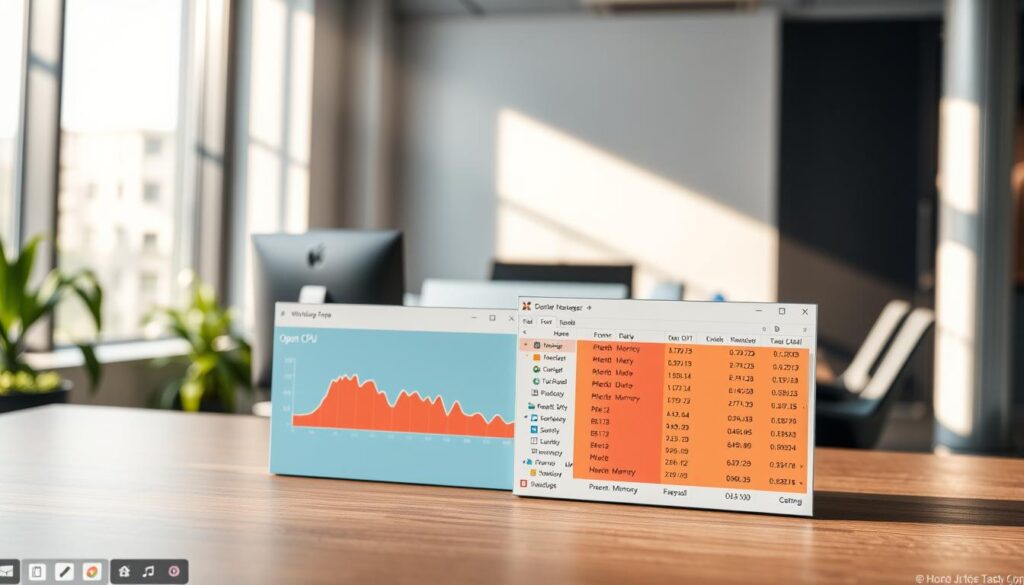
I also check the startup programs tab to stop unnecessary apps from launching. Managing virtual memory by closing heavy applications keeps overall performance stable during busy sessions.
- Monitor: Keep task manager visible to watch ram usage trends.
- Sort: Order processes by memory to find culprits fast.
- Scan: If a process looks suspicious, use built-in security tools to check for virus or malware.
| Action | Where | What it helps |
|---|---|---|
| Sort by memory | Processes tab | Find apps with high ram usage |
| End unresponsive task | Task Manager | Free system resources instantly |
| Review startup list | Startup tab | Stop unnecessary programs at boot |
| Close heavy apps | Active programs | Reduce virtual memory pressure |
Optimizing Startup and Background Services
I audit what launches at boot because many apps silently drain system resources. This step frees physical memory and shortens my boot time.
Disabling Unnecessary Startup Programs
I open the task manager and check the Startup tab. I disable apps I never use at boot to reduce ram usage and improve responsiveness.
When I disable startup entries, I watch boot time and active processes for a few days. That tells me if I removed the right programs.
Limiting Background App Permissions
I review Settings to limit which apps run in the background. I turn off background data for apps that do not need it.
“Disabling unused services freed several hundred megabytes of memory on my laptop.”
- Use the Settings app to stop background apps from running.
- Disable auto-start programs you don’t need every boot.
- Remove or pause services that continually consume memory and CPU.
| Action | Where | Effect |
|---|---|---|
| Disable startup apps | Task Manager > Startup tab | Lower ram usage at boot |
| Limit background apps | Settings > Privacy > Background apps | Reduce steady memory drain |
| Stop unused services | Services.msc (careful) | Free system resources |
| Monitor impact | Task Manager > Performance | Validate improved performance |
Adjusting Virtual Memory Settings
I tweak the paging file when I expect long editing or rendering sessions so my system doesn’t stall. This helps the computer handle peak loads and keeps background tasks from competing for limited RAM.
I set a custom virtual memory value rather than letting automatic settings pick it. A fixed paging file size on the fastest drive reduces disk thrashing and improves overall performance.
My steps:
- Open system settings and the advanced performance tab.
- Choose a custom paging file and set minimum and maximum values based on available space.
- Place the file on a fast drive and reboot to apply changes.
“After tuning the paging file, I saw steadier ram usage during long sessions.”
| Action | Where | Result |
|---|---|---|
| Custom paging | System settings | Less swapping |
| Fast drive | Storage selection | Better performance |
| Monitor | Task Manager | Confirm impact |
Improving Disk Performance and File System Health
I keep an eye on disk health because a worn drive often forces the system to juggle data and strains available RAM. A healthy drive helps the system read and write files faster, which keeps my computer responsive.
Running Disk Optimization Tools
I rely on a mix of built-in tools and trusted software to keep the file system tidy.
EaseUS Partition Master is my go-to for fixing file system errors that can cause false memory reports or erratic performance.
- I run a full disk check to repair errors that make the system re-read files and waste memory cycles.
- Regular defragmentation on HDDs consolidates files, freeing space and reducing ram demands during file access.
- I schedule optimization during off-hours so background checks do not slow my work or inflate memory usage.
- Keeping the drive healthy prevents the system from spending time resolving file errors, which helps steady overall performance.
“A well-maintained drive made my programs start faster and kept memory use stable across tasks.”
Addressing Registry and System Configuration
Tuning system configuration helps me prioritize essential processes and keep my computer responsive.
I carefully edit the registry to remove leftover entries that launch unnecessary programs at startup. I back up the registry first so I can restore settings if something goes wrong.
I follow safe steps:
- Export the registry before changes and create a system restore point.
- Search for obsolete keys tied to removed software and delete them cautiously.
- Adjust service startup types to manual for nonessential tasks.
I watch ram trends after each change to confirm improved performance. Cleaning outdated entries often shortens boot time and keeps the system running smoother during daily work.
“A tidy registry reduced background bloat and made my computer feel faster.”
| Action | Where | Result |
|---|---|---|
| Backup | Registry Editor / System Restore | Safe recovery point |
| Remove old keys | Registry Editor | Fewer startup programs |
| Update software | Settings & apps | Compatible entries, stable performance |
Scanning for Malware and Security Threats
I prioritize malware checks because unseen threats can silently sabotage my computer’s performance.
I use Panda Dome Premium, which includes an Update Manager, to keep my windows system current and defended. Regular updates help the scanner spot new attack methods and unwanted programs.
When I run a full scan I look for hidden processes that inflate ram and steal system cycles. These scans hunt background data miners and services that start at startup without my consent.
I monitor memory usage and ram while the scan runs so the security tool itself does not cause performance problems. If the scan slows my computer too much, I schedule it for off-hours.
- Keep security software updated to detect recent threats.
- Run a full system scan at least once a week to maintain steady memory usage.
- Remove detected threats to free system resources and restore normal file and program behavior.
After cleanup I check the task manager to confirm that ram and memory levels returned to normal. A clean system runs smoother and saves me time and frustration.
Upgrading Physical Hardware Components
If my system still struggles after cleanup, I consider hardware upgrades to restore steady performance.
I start with Task Manager to confirm whether my current computer lacks the power for the programs I run.
Adding RAM often gives the biggest immediate benefit. More physical memory lets me keep more apps open and reduces disk swapping.
I note that Tiny11 can lower system requirements to 2GB of RAM, but that is a short-term workaround. Upgrading components is usually more reliable for daily work with modern software.
- Check motherboard specs and available slots before buying new modules.
- Match RAM type and speed for best compatibility with your Windows setup.
- After installation, confirm the system recognizes the new modules and test performance with real workloads and data.
| Upgrade | Why | Expected Result |
|---|---|---|
| More RAM | Run more programs | Better multitask performance |
| Faster SSD | Reduce swapping | Smoother responsiveness |
| Compatibility check | Avoid issues | Smooth install and startup |
Conclusion
I make small, regular checks so I can catch resource drains before they hurt performance. Keeping a short routine saves time and keeps my computer responsive.
I open task manager to view ram and watch trends. I also check virtual memory, decide to disable startup entries I don’t need, and open task to end runaway programs.
With these steps I see better ram usage and steadier performance on my windows system. I back up data, keep security updated, and I feel confident I can maintain a fast, reliable computer for daily work.
FAQ
What are the common signs that my computer is experiencing severe memory pressure?
I notice slow app switching, repeated “Not Responding” messages, long system boot times, and high disk activity on the drive light. Task Manager shows large Commit Size and low Available memory. Programs crash or leak handles over time. These symptoms often point to a process consuming physical RAM or heavy paging to the paging file.
How do I use Task Manager to find which program is consuming the most RAM?
I open Task Manager (Ctrl+Shift+Esc), click the Processes tab, and sort by Memory to see top consumers. The Details and Performance tabs help me check Commit and Physical memory. I right‑click a process to open its file location or to end task when safe. Resource Monitor gives deeper insight into private working set and hard faults.
What steps should I take to reduce memory load from startup programs and services?
I open Task Manager’s Startup tab and disable nonessential items from loading. I also run msconfig or Services.msc to identify unnecessary services and set them to Manual. I review installed software and uninstall bloatware. Restarting after changes confirms the impact on boot RAM and system responsiveness.
How can I safely change virtual memory (paging file) settings to improve system stability?
I go to System > Advanced system settings > Performance Settings > Advanced > Virtual memory. I either let Windows manage the paging file or set a custom size: initial equal to installed RAM and maximum at 1.5–2× RAM as a starting point. I place the paging file on an SSD for better page performance and reboot after changes.
When should I run disk tools to improve performance, and which ones help with memory-related slowdowns?
I run CHKDSK to repair file system errors and Defragment and Optimize Drives for HDDs. On SSDs I use TRIM via the Optimize tool. I also run SFC (System File Checker) and DISM to repair corrupt system files that can cause memory leaks or unstable services.
How do I track down a memory leak in a specific program or driver?
I use Task Manager and Resource Monitor to identify the process with steadily increasing Private Working Set. Then I check Event Viewer for errors, update or roll back drivers in Device Manager, and update the app or Windows. For developers, Windows Performance Recorder and Debugging Tools can trace allocations causing leaks.
Could malware be the reason my RAM and paging file are under heavy load?
Yes. I run a full scan with Microsoft Defender or a reputable antivirus like Malwarebytes. I also check Task Manager for unfamiliar processes and use Autoruns from Microsoft Sysinternals to spot persistence mechanisms. Removing malware often reduces unexpected memory and disk activity.
What registry or system configuration changes might reduce memory pressure without risking stability?
I avoid random registry edits. Useful tweaks include disabling unused visual effects (System > Advanced > Performance Options) and ensuring Superfetch/Windows Search settings aren’t misconfigured. For advanced users, adjusting memory management keys is possible but risky—always back up the registry first.
How do I decide when to upgrade physical RAM versus adjusting software settings?
I monitor typical RAM consumption during normal workloads. If my baseline plus headroom exceeds installed RAM frequently, a hardware upgrade is best. If only occasional spikes occur or specific apps misbehave, software tuning, disabling startup items, and virtual memory adjustments can help first.
Will restarting my computer always resolve memory leaks temporarily?
Restarting clears the working set and frees leaked allocations, so it often restores responsiveness. I use it as a short‑term fix while diagnosing the root cause: bad drivers, app bugs, or malware are common recurring sources that need permanent fixes.
How can I limit background app permissions to conserve resources?
I open Settings > Privacy > Background apps (or Apps & features) and restrict apps from running in the background. I also review per‑app startup permission and set power plans to Balanced to reduce unnecessary background tasks that consume memory and CPU.
Are there recommended monitoring practices to prevent future memory problems?
I keep Task Manager and Resource Monitor handy, review startup apps after installing new software, enable automatic updates for Windows and drivers, and schedule regular antivirus scans. I also monitor disk health and free space on the system drive to ensure the paging file can function properly.
How do I ensure the paging file stays on the fastest drive available?
I check System > Advanced system settings > Performance > Advanced > Virtual memory and set the paging file to the SSD if present. If I use multiple drives, I place the paging file on the drive with the best I/O. I also maintain sufficient free space for the paging file to grow when needed.
What tools help diagnose long‑running memory problems for power users?
I use Windows Performance Recorder/Analyzer, Process Explorer, and RAMMap from Sysinternals to inspect allocations and mapped files. These tools reveal detailed memory breakdowns and can point to drivers or components responsible for leaks.

Marcus is a Senior Hardware Analyst with over 15 years of experience in system architecture and PC building. Specializing in memory optimization and overclocking, he translates complex RAM specifications into practical, easy-to-understand guides. When he isn’t bench-testing the latest DDR5 kits for AllTopSoft, Marcus is likely tinkering with his custom liquid-cooled home server.